- Published on
I Couldn't Find the Perfect Browser, So I Built One with AI in two weeks
- Authors

- Name
- Omar Elsayed
Introduction
Hello 👋, it's been a long time since my last article — but I wanted to wait until I had something actually useful to share.
Over the last couple of months, I've been on a mission: figuring out how to fully use AI to expand my knowledge and accelerate my career. And I'll be honest — the results surprised me. I've been building and designing a lot of apps with AI.
Literally any utility app I wanted, I'd explain it to AI and it would handle the hardest part — the start. After that, I'd enhance it, guide it, and teach it. This cut my development time in half and let me finally ship apps I'd been wanting to build for years but could never give enough time to.
But don't mistake that and think AI is everything. No no my man, sometimes it's dumb as **** 🤣. You need to be careful and guide it — because without your guidance, you won't be able to fully utilize it. AI is a multiplier, not a replacement. It multiplies whatever skill you already bring to the table.
And on 7/4/2026, I decided to build something I always wanted — a clean, native browser built with WebKit. In the upcoming sections, I'll tell you the full story of Blur Browser.
How Blur was born
I've always valued my privacy and security. I think twice about every tool I use — making sure it isn't stealing my data behind the scenes. And one of the tools I use daily, where privacy matters most to me, is the browser.
I tried a lot of browsers. Brave, Arc, Zen, even SigmaOS before it died — and I never found the mix I wanted. Brave has all the privacy and protection you could ask for, but it's built on Chromium, which is something I really don't trust.
Then I tried Arc — and the design was beautiful. The onboarding alone made me fall in love with it. But it was Chromium too, plus it didn't have any real protection built in. Then came SigmaOS — the closest one to what I wanted. Beautiful user experience and built with WebKit.
But for some reason it died, and it also didn't have any protection. So one day I asked myself: why don't I just build the browser I want, the way I want it?
A browser built with WebKit, with an amazing UI, and with real protection form the internet — like NSFW content filtering.
That's the day Blur was born. The day I couldn't accept the fact that I'm a geek 🤓 deep in the Apple ecosystem and still hadn't built the tool I actually wanted.
I started by thinking and imagining what I wanted — taking the best from each browser I tried. Arc + SigmaOS for the UI, Brave for the protection. Then I started with the first thing: design.
The Process of building Blur
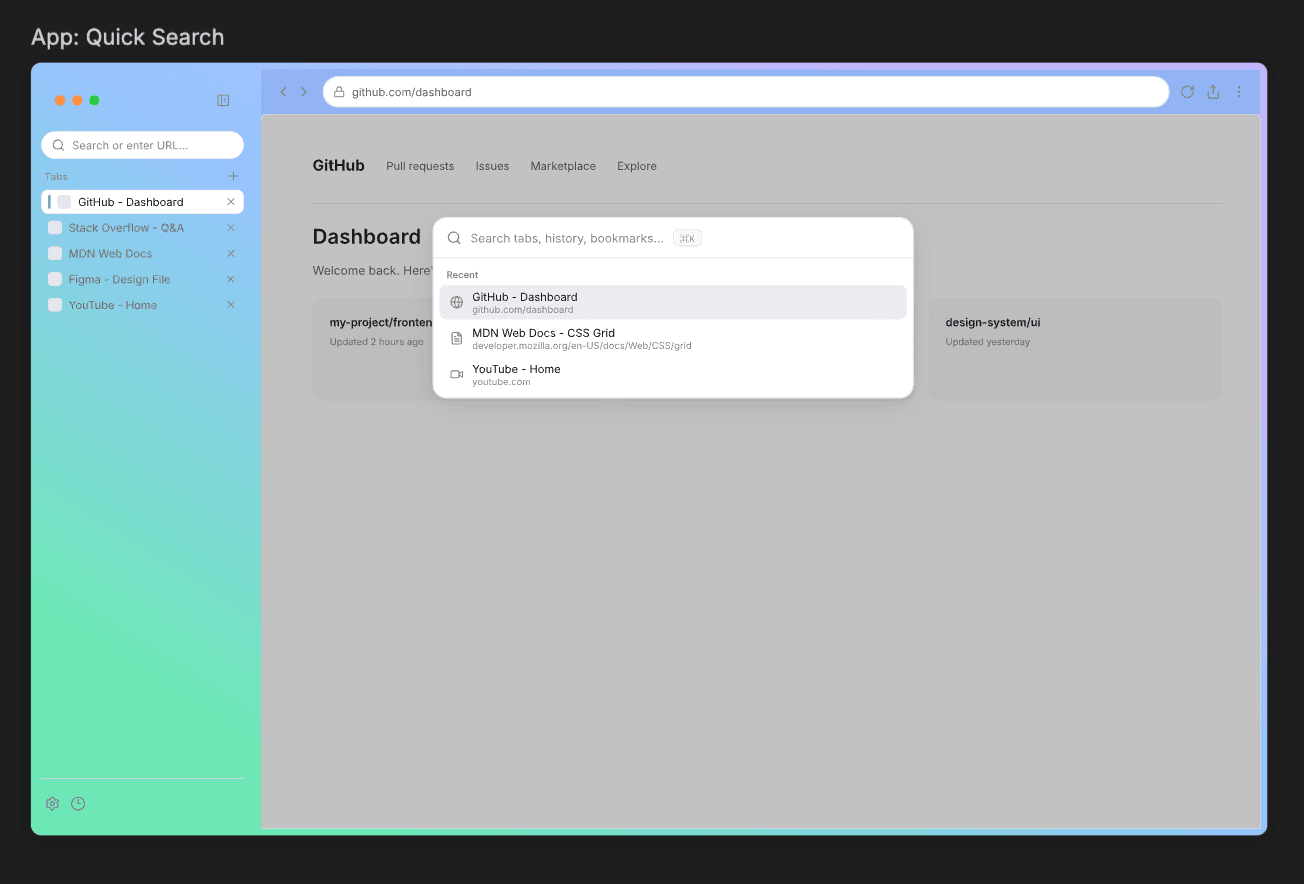
The first thing in the equation was the design. For this, I used pencil — and the result was something promising enough to get me started.
 vs
vs 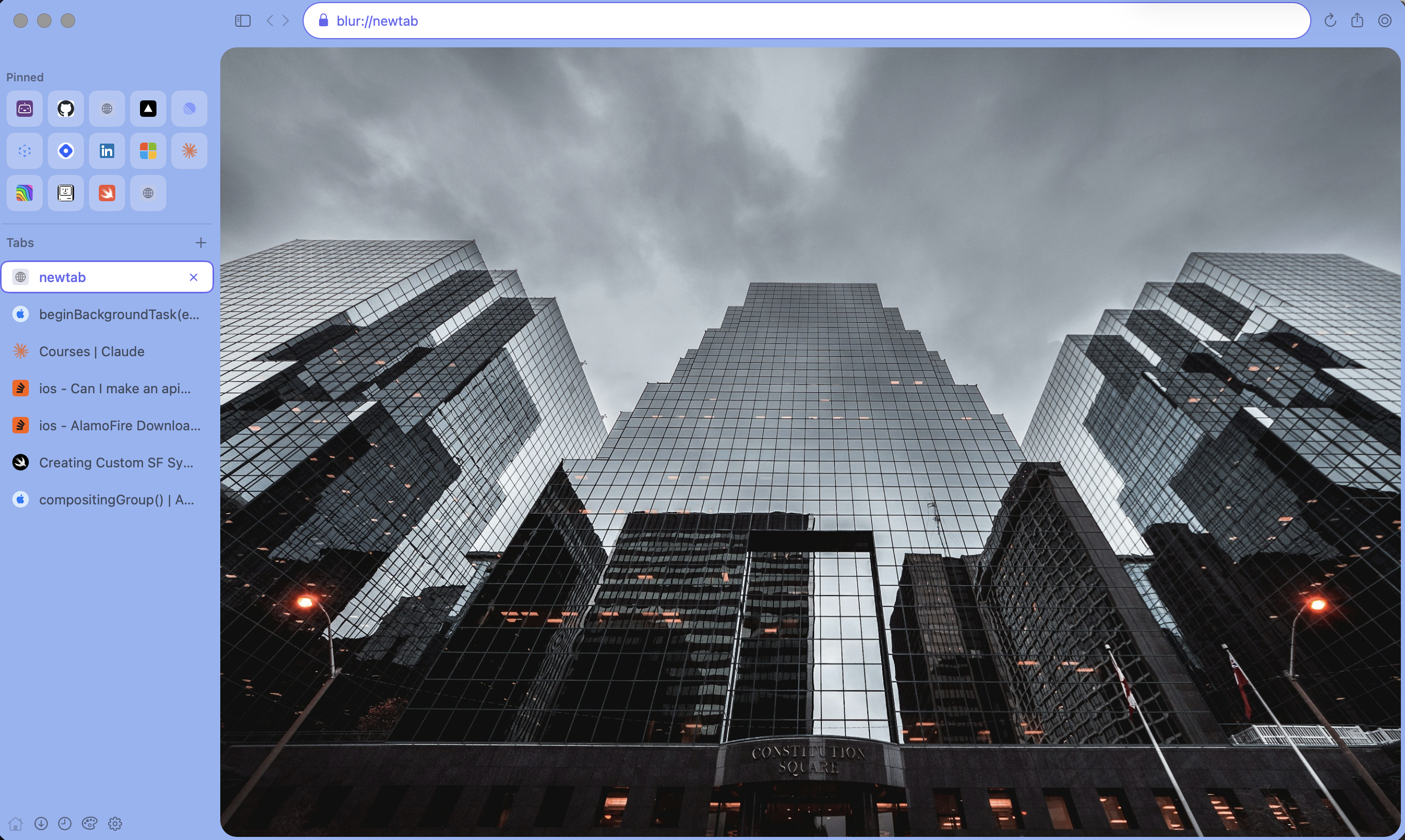
As you can see, the difference between the first design and the final one is huge.
That's because I didn't want AI to design it — what makes a design truly beautiful is the human touch. Instead, I wanted AI to give me a blueprint. Something to start from.
Having something and refining it is much, much easier than starting from scratch — at least for me. This is how I see the use of AI in design: it didn't come to replace designers.
After the design, I moved to the next step — writing the prompt for AI to build it. And you won't believe how big the prompt was 😅
# Browse (macOS Browser App)

## Project Overview

Create a new macOS browser app called **Browse** using a **hybrid AppKit + SwiftUI architecture**. The app is built with SwiftPM (no Xcode project file). AppKit owns the window chrome, tab management, toolbar, and `WKWebView` hosting. SwiftUI is used for secondary panels (history, settings, search overlays).

**Design reference:** `/Users/omarelsayed/Documents/Browser.pen` — open this file in Pencil and use `get_screenshot` to extract the exact layout, spacing, colors, typography, and component structure. Match the design pixel-for-pixel. If the .pen file is empty or has no screens yet, flag it and proceed with a clean, minimal dark-theme browser aesthetic (sidebar: `#1E1E1E`, content: `#2A2A2A`, accent: `#4A9EFF`, text: `#E0E0E0`).

---

## Architecture

Browse/
├── Package.swift
├── version.env
├── Sources/
│   ├── Browse/                    # Main app target
│   │   ├── App/
│   │   │   ├── AppDelegate.swift          # NSApplicationDelegate, app lifecycle
│   │   │   ├── main.swift                 # NSApplication entry point
│   │   │   └── AppMenuBuilder.swift       # NSMenu setup (File, Edit, View, History, Window, Help)
│   │   ├── Window/
│   │   │   ├── BrowserWindowController.swift  # NSWindowController — owns the window
│   │   │   ├── BrowserWindow.swift            # NSWindow subclass (titlebar styling, traffic lights)
│   │   │   └── MainSplitViewController.swift  # NSSplitViewController — sidebar + web content
│   │   ├── Sidebar/
│   │   │   ├── SidebarViewController.swift    # NSViewController hosting the SwiftUI tab sidebar
│   │   │   ├── SidebarView.swift              # SwiftUI — vertical tab list on the LEFT side
│   │   │   └── TabItemView.swift              # SwiftUI — individual tab row (favicon, title, close button)
│   │   ├── WebContent/
│   │   │   ├── WebViewController.swift        # NSViewController — hosts WKWebView
│   │   │   ├── WebViewCoordinator.swift       # WKNavigationDelegate, WKUIDelegate, WKDownloadDelegate
│   │   │   └── WebViewConfiguration.swift     # WKWebViewConfiguration setup (content blockers, preferences)
│   │   ├── Toolbar/
│   │   │   ├── AddressBarViewController.swift # NSViewController — URL bar + navigation buttons
│   │   │   └── ToolbarDelegate.swift          # NSToolbarDelegate for toolbar items
│   │   ├── Search/
│   │   │   ├── QuickSearchPanel.swift         # NSPanel — Spotlight-like overlay for URL/search (⌘+L or ⌘+T)
│   │   │   ├── QuickSearchView.swift          # SwiftUI — search field + suggestions list
│   │   │   ├── QuickSearchViewModel.swift     # @Observable — manages search text, suggestions, history matches
│   │   │   ├── FindInPageBar.swift            # NSView — in-page text search bar (⌘+F)
│   │   │   └── FindInPageController.swift     # Drives WKWebView.find(_:configuration:completionHandler:)
│   │   ├── History/
│   │   │   ├── HistoryStore.swift             # @Observable — Core Data or SwiftData store for history entries
│   │   │   ├── HistoryEntry.swift             # Model — url, title, timestamp, favicon
│   │   │   ├── HistorySidebarView.swift       # SwiftUI — history list grouped by date, shown in sidebar
│   │   │   └── HistorySearchView.swift        # SwiftUI — search/filter within history
│   │   ├── Tab/
│   │   │   ├── TabManager.swift               # @Observable — source of truth for all open tabs
│   │   │   ├── BrowserTab.swift               # Model — id, url, title, favicon, isLoading, canGoBack/Forward
│   │   │   └── TabSessionStore.swift          # Persist/restore open tabs across launches
│   │   └── Shared/
│   │       ├── Constants.swift                # App-wide constants (default search engine URL, user agent)
│   │       └── KeyboardShortcuts.swift        # Centralized shortcut definitions
│   └── BrowseKit/                 # Shared logic package (optional, for future reuse)
│       └── ...
├── Resources/
│   ├── Assets.xcassets/
│   └── Info.plist
└── Scripts/
    ├── package_app.sh
    └── compile_and_run.sh

---

## Feature Requirements

### 1. Left Sidebar Tab Bar

- **Vertical tab list** on the LEFT side of the window (not top tabs).
- Each tab row shows: favicon (16×16), page title (truncated with ellipsis), close button (appears on hover).
- Active tab has a distinct highlight (background color or leading accent bar).
- Bottom of sidebar: "+" button to open a new tab.
- Sidebar is collapsible — toggle with `⌘+\` or a toolbar button.
- Sidebar width: ~220pt, min 180pt, resizable via `NSSplitView` divider.
- When the sidebar is in "History" mode, it replaces the tab list with `HistorySidebarView`.
- A segmented control or icon toggle at the top of the sidebar switches between **Tabs** and **History** mode.
- Drag-to-reorder tabs in the sidebar.
- Right-click context menu on tabs: Close Tab, Close Other Tabs, Duplicate Tab, Pin Tab.
- Use SwiftUI for the sidebar content (`SidebarView`), hosted inside `SidebarViewController` via `NSHostingController`.

### 2. Quick Search (⌘+L or ⌘+T)

- Opens a **floating, centered overlay panel** (like Spotlight / Arc's command bar).
- Use `NSPanel` (non-activating, `.titled + .fullSizeContentView + .nonactivatingPanel`).
- Contains a single text field at the top.
- As the user types:
  - Show **search suggestions** from the default search engine (Google suggest API: `https://suggestqueries.google.com/complete/search?client=firefox&q=QUERY`).
  - Show **matching history entries** from `HistoryStore` (filtered by URL and title).
  - Show **matching open tabs** from `TabManager`.
- Sections in the results list: "Switch to Tab" → "History" → "Search Suggestions".
- Pressing Enter on a suggestion: navigates the current tab (or switches to the matched tab).
- Pressing Escape or clicking outside: dismisses the panel.
- The search view is SwiftUI (`QuickSearchView`) hosted inside the `NSPanel`.
- Keyboard navigation: arrow keys to move through suggestions, Enter to select.

### 3. Find in Page (⌘+F)

- A horizontal bar that appears **at the top of the web content area** (below the toolbar, above the web view).
- Contains: search text field, match count label ("3 of 12"), previous/next buttons (↑/↓), done/close button (×).
- Uses `WKWebView`'s native find API: `webView.find(searchString, configuration:completionHandler:)` on macOS 13+.
- Fallback for older macOS: use `webView.evaluateJavaScript("window.find(...)"`).
- Real-time highlighting as the user types (debounced 300ms).
- `⌘+G` for next match, `⌘+Shift+G` for previous match.
- Pressing Escape closes the find bar and clears highlights.
- Implemented as an AppKit `NSView` (`FindInPageBar`) — not SwiftUI — so it integrates cleanly with the web view layout.

### 4. History

- Every navigation (not including back/forward, only new page loads) is recorded in `HistoryStore`.
- Store: `url`, `title`, `timestamp`, `faviconURL`.
- Persistence: Use **SwiftData** with a `HistoryEntry` model (macOS 14+). If targeting macOS 13, use Core Data instead.
- `HistorySidebarView` groups entries by date: "Today", "Yesterday", "Last 7 Days", "Last 30 Days", "Older".
- Each row: favicon, title, URL (secondary text), relative timestamp.
- Search bar at the top of history view filters by title and URL.
- Right-click on a history entry: Open, Open in New Tab, Copy URL, Delete.
- "Clear History..." option in the History menu (with time range picker: last hour, today, all time).
- History is also searchable from the Quick Search panel.

---

## Keyboard Shortcuts

| Shortcut | Action |
|---|---|
| `⌘+T` | New tab (opens Quick Search) |
| `⌘+W` | Close current tab |
| `⌘+L` | Focus Quick Search / address bar |
| `⌘+F` | Find in page |
| `⌘+G` | Find next |
| `⌘+Shift+G` | Find previous |
| `⌘+\` | Toggle sidebar |
| `⌘+[` | Go back |
| `⌘+]` | Go forward |
| `⌘+R` | Reload |
| `⌘+Shift+R` | Hard reload (bypass cache) |
| `⌘+1-9` | Switch to tab 1-9 |
| `⌘+Shift+]` | Next tab |
| `⌘+Shift+[` | Previous tab |
| `⌘+Y` | Toggle History sidebar |

---

## Technical Constraints

1. **SwiftPM only** — no `.xcodeproj`. Use `Package.swift` with `executableTarget`. See the bootstrap template at the macOS SPM packaging skill for folder structure, `package_app.sh`, and `compile_and_run.sh`.
2. **Minimum deployment target: macOS 14** (Sonoma) — this gives us SwiftData, `@Observable`, and modern `WKWebView` find APIs.
3. **AppKit is the host**, SwiftUI is embedded via `NSHostingController` / `NSHostingView`. Never wrap the entire window in SwiftUI.
4. **`@Observable` for all view models** — no `ObservableObject`. Mark with `@MainActor`.
5. **No third-party dependencies** for V1 — use only Apple frameworks (WebKit, SwiftUI, AppKit, SwiftData).
6. **Window styling**: unified titlebar + toolbar (`.unifiedTitleAndToolbar`, `.fullSizeContentView`), transparent titlebar, dark-by-default appearance. Traffic lights should be vertically centered in the toolbar area.
7. **Tab state is the source of truth**: `TabManager` is a single `@Observable @MainActor` class. The sidebar, toolbar, and web view all read from it. Mutations go through `TabManager` methods only.
8. **One `WKWebView` per tab** — do not reuse/recycle web views. Store them in the `BrowserTab` model. Only the active tab's web view is in the view hierarchy.
9. **Thread safety**: All UI state is `@MainActor`. WebKit delegate callbacks are already main-thread. History writes can be async but must be dispatched to the SwiftData `ModelContext` on the main actor.
10. **User agent**: Set a Safari-compatible user agent string so sites don't serve degraded content.

---

## Do NOT

- Do NOT use Electron, Tauri, or any non-native approach.
- Do NOT put the tab bar at the top of the window — it must be a vertical sidebar on the LEFT.
- Do NOT use `NavigationSplitView` — use `NSSplitViewController` directly for precise control.
- Do NOT use `@StateObject` or `ObservableObject` — use `@Observable` with `@State`.
- Do NOT make the sidebar a separate window — it's a pane in the split view.
- Do NOT use `WKWebView` inside a SwiftUI `WebViewRepresentable` — host it in a native `NSViewController`.
- Do NOT add any content blocker, ad blocker, or filtering features in V1.
- Do NOT hardcode colors — define a color palette in `Constants.swift` or as `NSColor` extensions, so theming is easy later.
- Do NOT skip keyboard shortcuts — every shortcut in the table above must work from launch.

---

## Implementation Order

1. **Scaffold** — `Package.swift`, entry point, `AppDelegate`, empty window.
2. **Window + Split View** — `BrowserWindow`, `BrowserWindowController`, `MainSplitViewController` with sidebar + content panes.
3. **Tab Manager** — `TabManager`, `BrowserTab` model, basic add/remove/select tab logic.
4. **Web View** — `WebViewController` with `WKWebView`, navigation delegates, load a URL.
5. **Sidebar** — `SidebarView` (SwiftUI) with tab list, new tab button, tab selection. Host in `SidebarViewController`.
6. **Toolbar + Address Bar** — `ToolbarDelegate`, `AddressBarViewController` showing current URL, back/forward/reload buttons.
7. **Quick Search** — `QuickSearchPanel` + `QuickSearchView` with text input, Google suggestions, history matching.
8. **Find in Page** — `FindInPageBar` + `FindInPageController`, wired to `WKWebView.find()`.
9. **History** — `HistoryStore` (SwiftData), `HistoryEntry`, `HistorySidebarView`, sidebar mode toggle.
10. **Keyboard Shortcuts** — Wire all shortcuts in `AppMenuBuilder` and local event monitors.
11. **Tab Persistence** — `TabSessionStore` to save/restore tabs across launches.
12. **Polish** — animations, hover states, drag-to-reorder, context menus, error states.

---

## Design Reference

The design for this app lives in `/Users/omarelsayed/Documents/Browser.pen`. Before implementing any UI:
1. Open the `.pen` file and inspect all frames/screens.
2. Extract exact colors, spacing, font sizes, corner radii, and layout from the design.
3. Match the sidebar width, tab row height, toolbar height, and search panel dimensions to the design.
4. If the design specifies specific icons (SF Symbols or custom), use those exact icons.
5. If the `.pen` file is empty, use the fallback dark theme described above and flag that the design file needs to be populated.
And don't think I spent hours writing this prompt either. I told Claude to write the prompt for me while giving it the design file, and the output was much better because of it.
Yes, you read that right — I used AI to write the prompt that I then gave back to AI. It's like telling your friend to write his own to-do list and then asking him to do it. Except it actually works 🤣.
What I have learned
Prompt writing Prompt trick. This was the trick that changed everything for me. Instead of sitting there for an hour trying to write the perfect detailed prompt, I described what I wanted in plain words and let AI draft the technical spec. Then I reviewed it, refined it, and fed it back.
The result was way more structured and detailed than anything I would've written manually.
For example, when I wanted to build the sidebar, instead of writing a detailed prompt myself I just said something like:
"I want a vertical tab sidebar on the left side of the window, each tab shows a favicon and title, there's a close button on hover, and I can drag to reorder tabs. The sidebar should be collapsible and built with SwiftUI hosted inside an AppKit NSViewController." — And AI turned that into a full spec with exact dimensions, keyboard shortcuts, context menu actions, and edge cases I hadn't even thought about.
It's like telling someone "here's what I'm imagining" and they hand you back a full blueprint. You still make the final call — but the heavy lifting of organizing your thoughts is done.
Use your brain 🧠 and Debug first, then ask AI to fix it. I'll be honest — this one took me a while to learn.
Early on, I'd hit a bug and immediately throw it at AI: "fix this." And the result? It would change things that didn't need changing and sometimes introduce new bugs.
The lightbulb moment hit me like a truck: if I take 5 minutes to actually understand what's broken and why, then tell AI exactly what the problem is, it fixes it in one shot.
The difference between "this doesn't work, fix it" and "this crashes because the tab index is off by one on line 42" is night and day.
Because at this point it have a detailed context that guides him during fixing problem vs. the old way where he have to create that context for him self.
One task per prompt. When I gave AI a prompt that said "build me the sidebar, add history support, and wire up the keyboard shortcuts" — the output was messy.
It would half-finish things, mix concerns, and cut corners on each one.
But when I focused each prompt on a single task — "build the sidebar tab list with drag-to-reorder" — the quality jumped dramatically.
Think of it like this: if you ask someone to cook, clean, and fix the plumbing at the same time, don't be surprised when the food is burnt 🔥.
Don't ever rush it by writing everything you want in one prompt, be patient and focus your prompts this helps AI to be focused too.
Guide it — don't let it take the wheel. This is the most important lesson. AI is not a senior developer you can hand a project to and walk away.
It's more like a very fast junior who's great at execution but needs direction. The moment I stopped treating AI as the decision maker and started treating it as a tool that amplifies my decisions, everything clicked.
I decide the architecture. I decide the UX. I decide what stays and what gets rewritten. AI just helps me get there faster.
Without your guidance, you'll end up with an app that works but doesn't feel like yours.
Conclusion
Building Blur was one of the most fun projects I've worked on. It started as a frustration with every browser I tried and ended with something I'm genuinely proud of — a browser that's mine, built the way I want it.
But more than the app itself, this project changed how I think about building software. AI didn't build Blur. I built Blur — AI just made it possible to do it in a fraction of the time.
And that's the real takeaway: AI is the best tool you'll ever have, but it's still just a tool.
The vision, the taste, the decisions — that's all you. So if there's something you've always wanted to build but never had the time, now you do. Go build it 👷♂️.
Blur Browser still has more features to come — this is just the beginning. If you want to try it, visit blurbrowser.app