- Published on
The 4-Step Process I Use to Create SwiftUI Animations
- Authors

- Name
- Omar Elsayed
In the last article, we dove deep into SwiftUI's animation fundamentals—explicit animations, implicit animations, transitions, and all the gotchas that trip developers up.
But here's the thing: knowing the APIs isn't enough.
You can memorize every animation modifier SwiftUI offers and still produce animations that feel janky, drain battery, or just plain don't work. I learned this the hard way when I spent an entire afternoon creating an animation that looked great on the simulator but turned my iPhone into a space heater.
The difference between okay animations and great animations isn't knowledge—it's process.
Today, I'm sharing the exact 4-step process I use at work to create animations that are both visually polished and performant. This is the same process I used to recreate iOS's large title navigation bar animation when I needed it to work in our mixed UIKit/SwiftUI app.
- Step 1: Understand the Problem
- Step 2: How to Fight an Army Alone
- Step 3: Connect the Dots
- Step 4: Refine and Iterate
- Conclusion: Process Over Knowledge
Let's dig deep into each step .
Step 1: Understand the Problem
This sounds obvious, right? "Just understand what you're building." But rushing through this step is how you end up with animations that technically work but feel wrong.
I'll give you a real example from work that taught me this lesson.
We needed iOS's large title navigation bar animation—you know, the one where the large title smoothly transitions to a small title in the nav bar as you scroll.
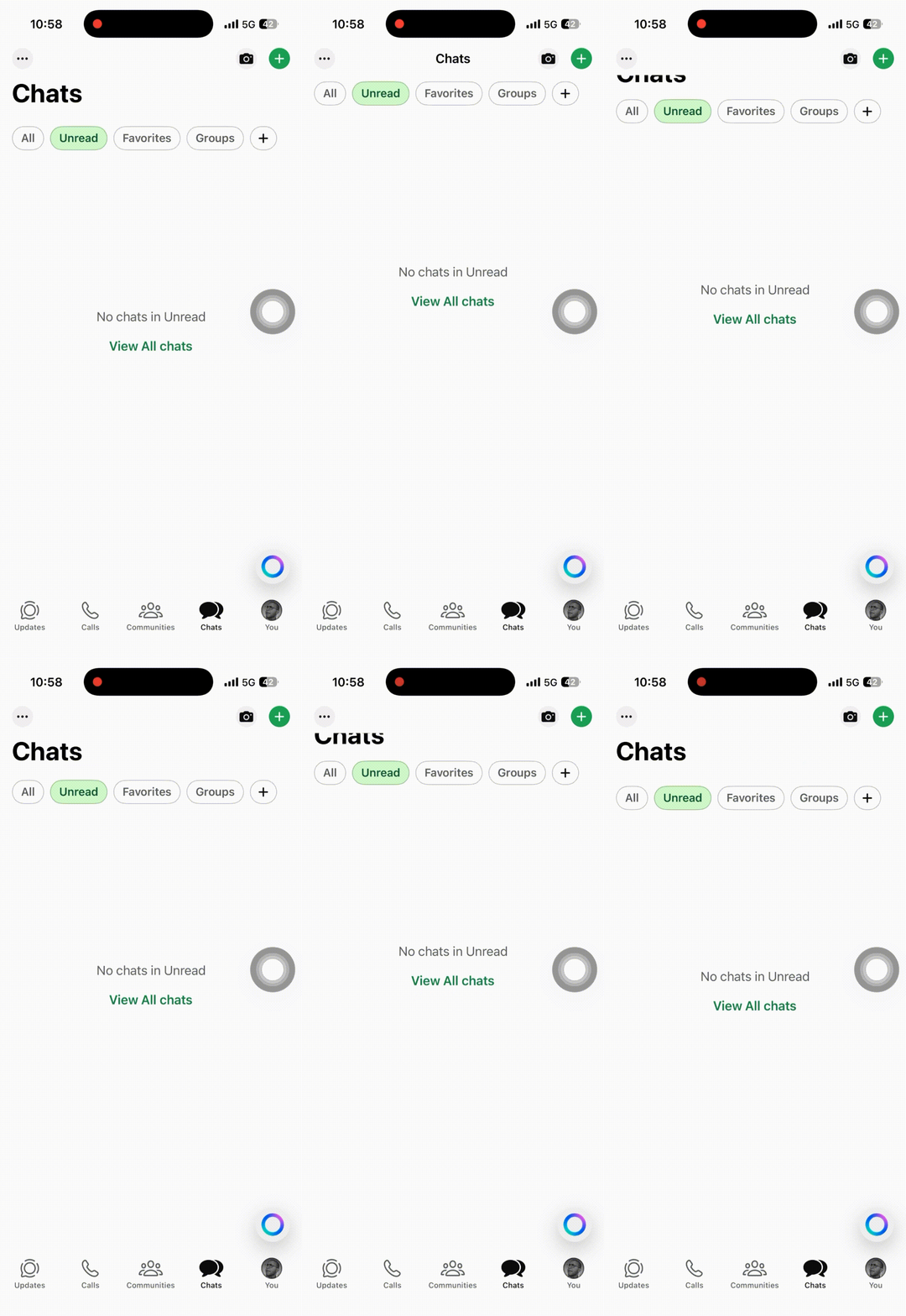
Simple enough, except our app is a weird hybrid: UIKit for navigation, SwiftUI for everything else.
And that specific animation behavior? Not available when you wrap SwiftUI views in UIKit.
NOTE
Apple fixed this in iOS 26, but we couldn't wait.
So I decided to build it myself. And I started by doing what any rational developer would do:
I stared at the animation for an hour 😅.
Seriously. I just scrolled up and down, watching the large title disappear and the small title appear, trying to understand what was actually happening.
It felt like I was going insane. Then I slowed it down. And everything clicked.
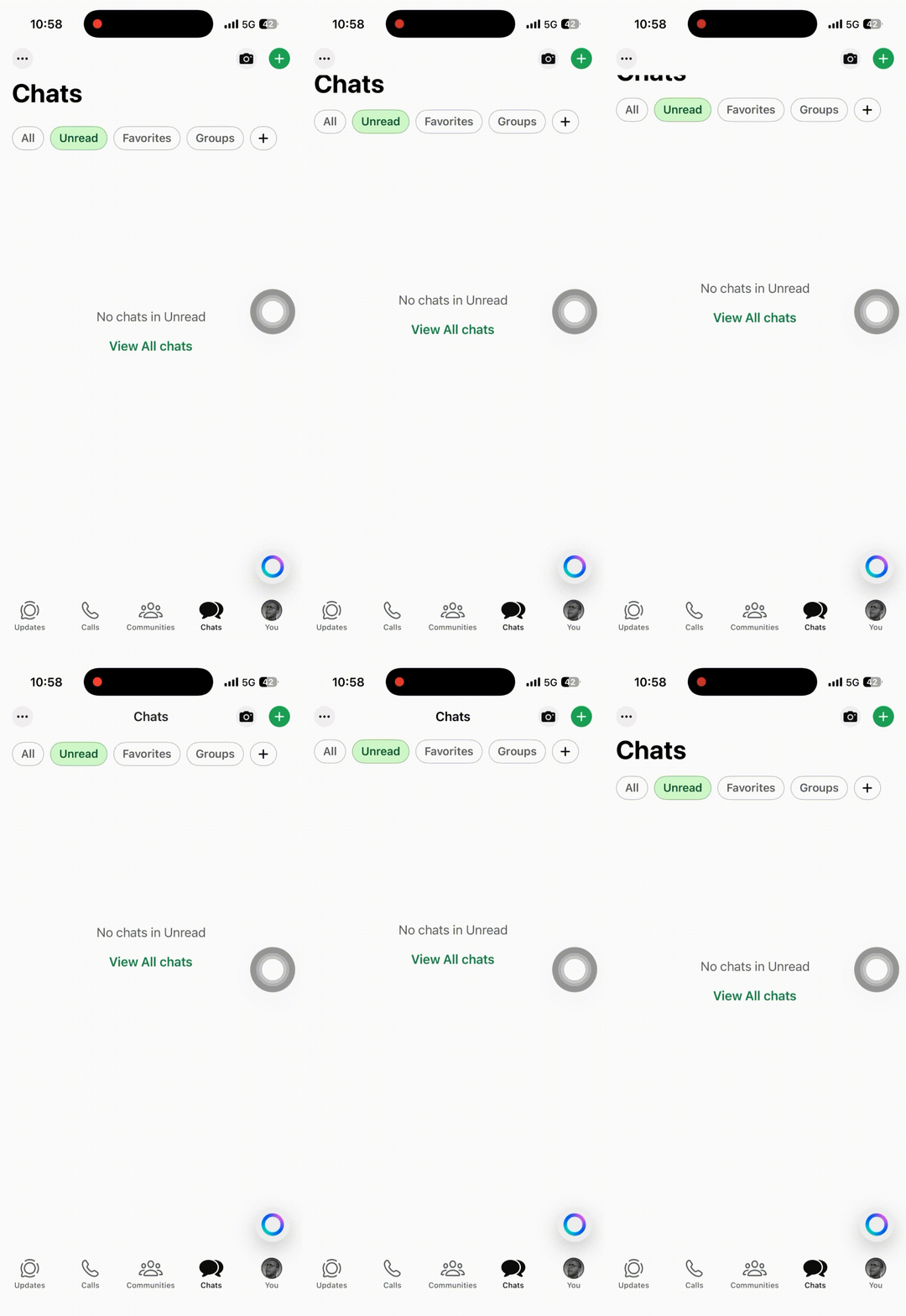
The insight: The large title doesn't fade out or transform into the small title. It just scrolls away.
The large title is part of the scroll view content—it's literally in a VStack with everything else.
The only things animating are:
- The small title appearing in the nav bar
- The nav bar background fading in
This one realization completely changed my approach.
Instead of trying to build some complex morphing animation, I just needed to show/hide views at the right scroll position.
Understanding the problem means breaking down the visual effect into its actual mechanics. Slow things down. Watch frame by frame if you have to.
Figure out what's really moving, fading, or transforming before you write a single line of code.
Step 2: How to Fight an Army Alone
Here's how my brain works when I'm solving a problem: I imagine I'm fighting an army, and I'm completely alone.
The only way to win? Divide the army into small groups and take them out one by one.
For animations, that army is all the questions flooding my head:
How will I add the navigation bar? How will I animate the small title? Where does the large title go? How do I wrap this in a clean API?
If I try to answer all of these at once, I freeze. So I don't. I pick the easiest question first and solve just that one.
Q1: What Should the API Look Like?
Let's tackle this one first because it's the simplest. I want the final API to be clean and familiar—something that feels like it belongs in SwiftUI:
NavigationBarScrollView(title: "Title") {
    // Content here
}
One down. Three to go 🤣.
Q2: How Do I Add the Navigation Bar?
SwiftUI has .safeAreaInset(edge:) which lets you add persistent content that pushes your scroll view down. Perfect for a navigation bar:
ScrollView {
    // Content
}
.safeAreaInset(edge: .top) {
    NavigationBarView(title: showSmallTitle ? "Settings" : nil)
}
This positions the nav bar exactly where iOS puts the built-in one, and the scroll view content automatically adjusts.
Q3: How Do I Handle the Large Title?
Easy—just put it in a VStack with the scroll content:
ScrollView {
    VStack(alignment: .leading, spacing: 0) {
        Text("Settings")
            .font(.largeTitle.bold())
            .padding()
            .opacity(showSmallTitle ? 0.0: 1.0)

        // Rest of content
    }
}
As the user scrolls, the large title naturally scrolls away with the content. No animation needed.
Q4: How Do I Animate the Small Title?
Now we get to the interesting part. The small title needs to appear when the large title scrolls off screen, and disappear when it scrolls back.
Since we're inserting/removing a view, this is a job for .transition():
if showSmallTitle {
    Text("Settings")
        .font(.headline)
        .transition(
            .asymmetric(
                insertion: .move(edge: .bottom).combined(with: .opacity),
                removal: .move(edge: .bottom).combined(with: .opacity)
            )
        )
}
We use asymmetric transitions because we want the title to slide up from the bottom when appearing and slide down when disappearing—matching iOS's behavior (iOS 26).
But wait—how do we know when to set showSmallTitle to true? That's the next step.
Step 3: Connect the Dots
Now that we know how to implement each piece individually, it's time to wire them together.
Here's the full component structure:
struct NavigationBarScrollView<Content: View>: View {
    let title: String
    @ViewBuilder let content: Content

    @State private var showSmallTitle = false
    @State private var showBackground = false

    var body: some View {
        ScrollView {
            VStack(alignment: .leading, spacing: 14) {
                Text(title)
                    .font(.largeTitle.bold())
                    .padding()
                    .opacity(showSmallTitle ? 0.0: 1.0)
                    .frame(maxWidth: .infinity, alignment: .leading)
                    .background(
                        GeometryReader { geometry in
                            Color.clear.preference(
                                key: ScrollOffsetPreferenceKey.self,
                                value: geometry.frame(in: .named("scroll")).minY
                            )
                        }
                    )

                content
            }
        }
        .coordinateSpace(name: "scroll")
        .onPreferenceChange(ScrollOffsetPreferenceKey.self) { offset in
            let isLargeTitleHidden = offset < -30
            guard (isLargeTitleHidden && !showSmallTitle) ||
                    (!isLargeTitleHidden && showSmallTitle) else { return }

            showBackground = isLargeTitleHidden
            withAnimation(.easeInOut(duration: 0.25)) {
                showSmallTitle = isLargeTitleHidden
            }
        }
        .safeAreaInset(edge: .top) {
            HStack {

                Spacer()

                if showSmallTitle {
                    Text(title)
                        .font(.headline)
                        .transition(
                            .asymmetric(
                                insertion: .move(edge: .bottom).combined(with: .opacity),
                                removal: .move(edge: .bottom).combined(with: .opacity)
                            )
                        )
                }

                Spacer()
            }
            .padding(10)
            .background(showBackground ? Color.white: Color.clear)
        }
    }
}

struct ScrollOffsetPreferenceKey: PreferenceKey {
    static var defaultValue: CGFloat = 0
    static func reduce(value: inout CGFloat, nextValue: () -> CGFloat) {
        value = nextValue()
    }
}
The magic happens with preference keys—a way to pass data up the view tree from child to parent. We attach a GeometryReader to the large title, track its position, and send that value up to the parent view.
Now, you might be thinking: "Why not just write this?"
.onPreferenceChange(ScrollOffsetPreferenceKey.self) { offset in
    withAnimation(.easeInOut(duration: 0.25)) {
        showSmallTitle = offset < -60
    }
}
Because that would trigger a view update on every single scroll offset change. Your user's phone would start plotting revenge 🤣 when you do that.
The guard statement means we only update the state twice: once when crossing the threshold going down, once when crossing it going up.
That's the difference between 2 state updates and 200+ state updates while scrolling.
Step 4: Refine and Iterate
Here's where you put your animation next to the original and play spot the difference.
I'll be honest: the first time I did this, my animation looked terrible. It worked, technically, but it felt off.
The timing was wrong, the easing curve was robotic, and it just didn't have that polish iOS animations have.
SwiftUI gives you .default for animations, which is... fine. But "fine" isn't what we're going for.
I tested .easeInOut, .spring, and even custom Animation.timingCurve() values until the small title transition felt right.
Animation timing is more art than science—you'll know it when you see it.
Here's what I landed on:
withAnimation(.easeInOut(duration: 0.25)) {
}
But iOS actually uses a spring for this. So I tried:
withAnimation(.spring(response: 0.3, dampingFraction: 0.8)) {
}
Better. Much better.
The last thing I do is slow down both animations and compare them frame by frame.
Small tweaks like adjusting the duration by 0.05 seconds or changing the spring damping can make a huge difference.
It's like seasoning food—a pinch of salt changes everything 👨🏻🍳.
Conclusion: Process Over Knowledge
The next time you need to create an animation in SwiftUI, don't just jump into code and start throwing .animation() on everything.
Follow a process:
- Understand the Problem — Slow things down, observe what's really happening
- Divide and Conquer — Break it into small, focused problems you can tackle one by one
- Connect the Dots — Wire everything together and make the pieces talk to each other
- Refine and Iterate — Tweak, test on real devices, and polish until it feels right
Great animations don't come from knowing every SwiftUI API—they come from having a clear process and the patience to follow it.
We went from staring at a navigation bar for an hour to building the entire thing from scratch, piece by piece.
And honestly? The result was worth every minute.
If you haven't already, check out the previous article on SwiftUI animations where we covered explicit, implicit, and transition animations—it's the foundation for everything we built here.
Now go build something that moves beautifully ⚡️
subscribe for more like this